> ## Documentation Index
> Fetch the complete documentation index at: https://fillout-005a867b-mika-integrations-new-ui.mintlify.site/llms.txt
> Use this file to discover all available pages before exploring further.
# Add a Table to your Form
> Let respondents enter data in a spreadsheet-like format with multiple rows and columns.
export const SupportBanner = () => {
const titleId = React.useId();
return ;
};
## Overview
**Tables** can be used to collect structured information in bulk across different field types. Common use cases include:
* Collecting an order list
* Requesting an expense breakdown
* Creating a staff directory
## How to insert a table
On the left-hand panel, look for the `Table` field. Click `+ Add column` to ask a question or request for information.
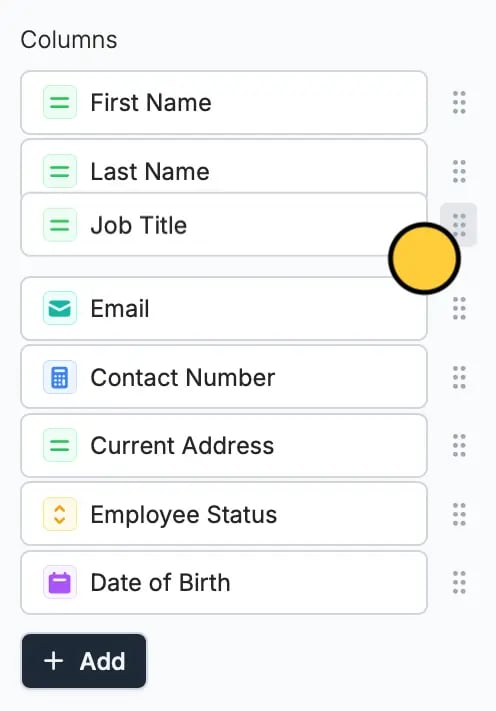
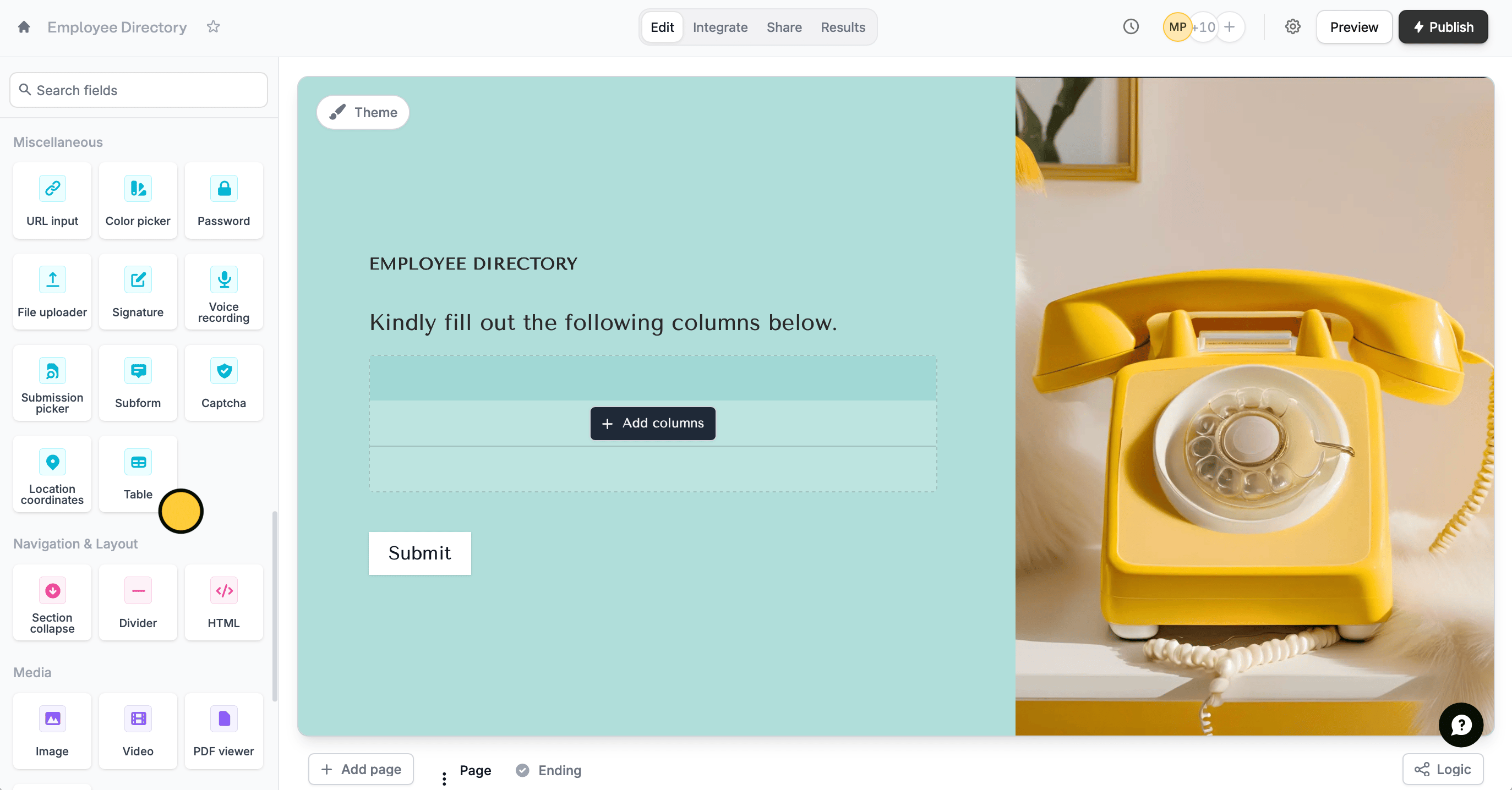 Choose from 5 different field types: short answer, email input, date picker, dropdown, and number. The email input field will only accept valid email addresses.
Reorder the columns by dragging them in the right-hand panel.
Choose from 5 different field types: short answer, email input, date picker, dropdown, and number. The email input field will only accept valid email addresses.
Reorder the columns by dragging them in the right-hand panel.
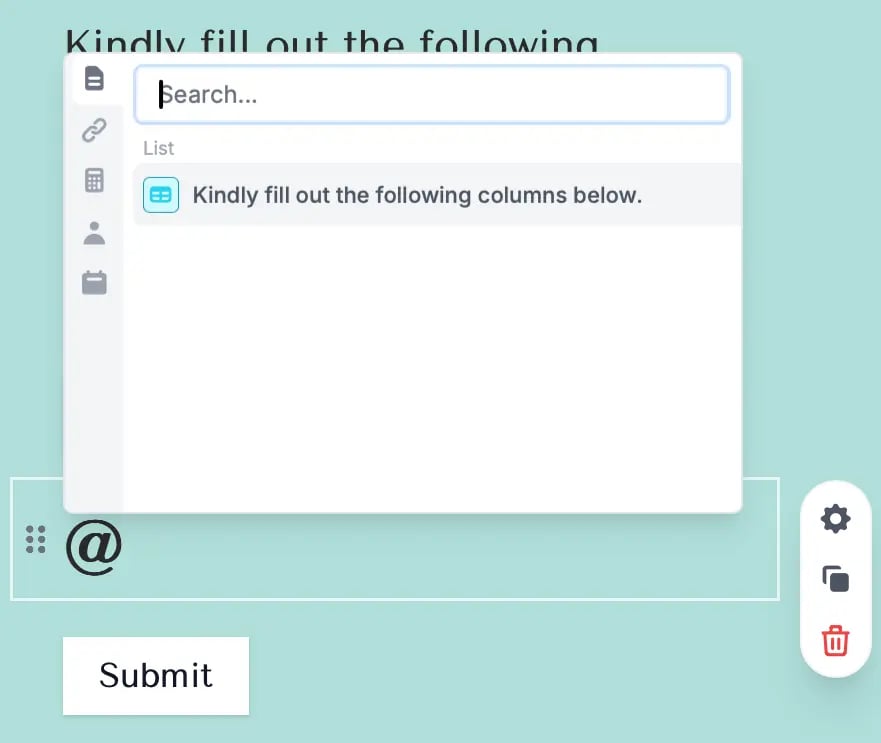
 You can also reference the table field by typing **@** and selecting it from the choices.
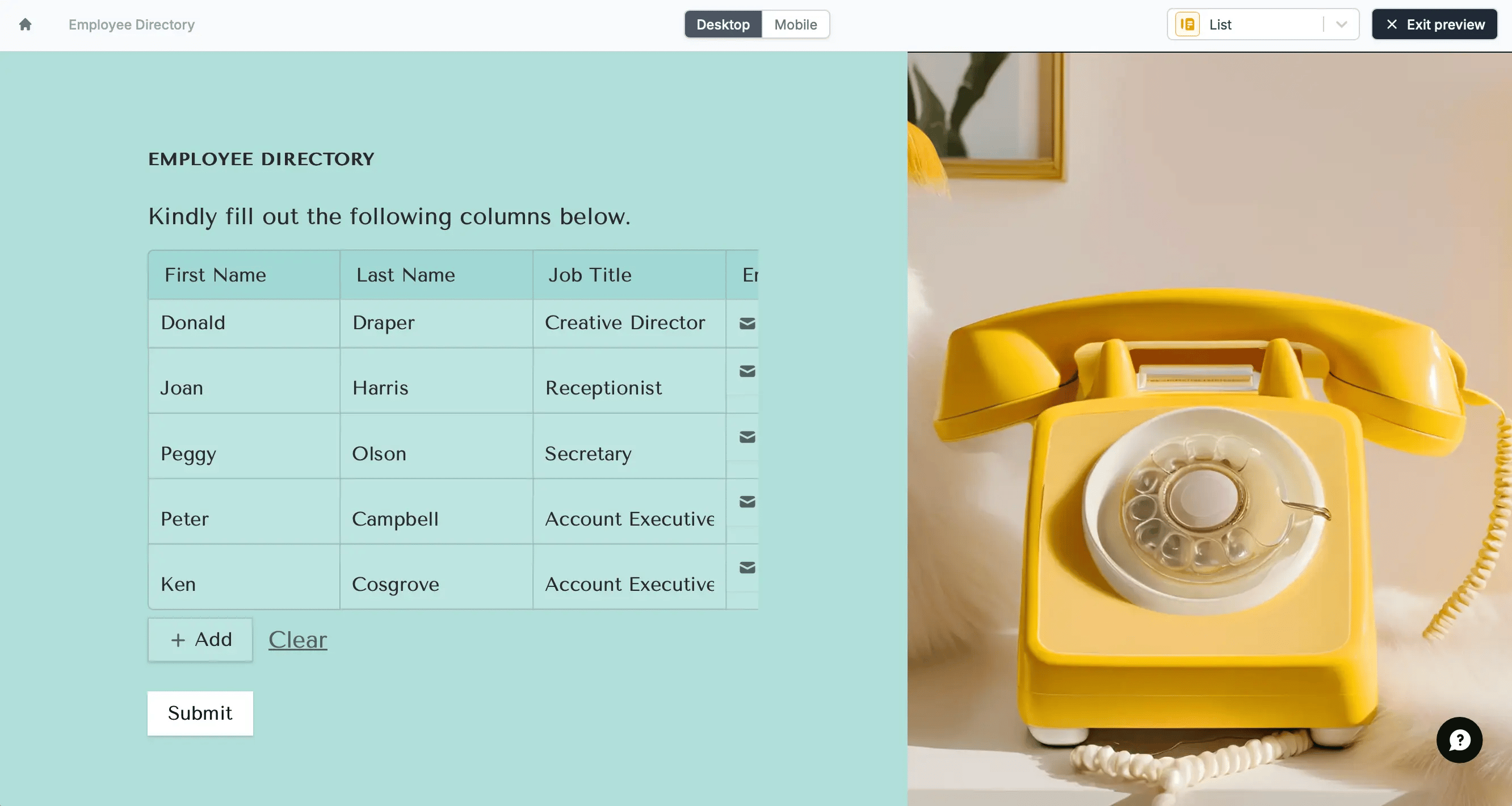
 Click `Preview` in the upper right corner to test your form. Respondents will be able to quickly add more rows as needed. Once everything is set, click `Publish` to make your form live.
 Connecting the table field to an [integration]() is currently not supported. However, responses can be viewed in a modal on the Results page.
## Table vs choice matrix
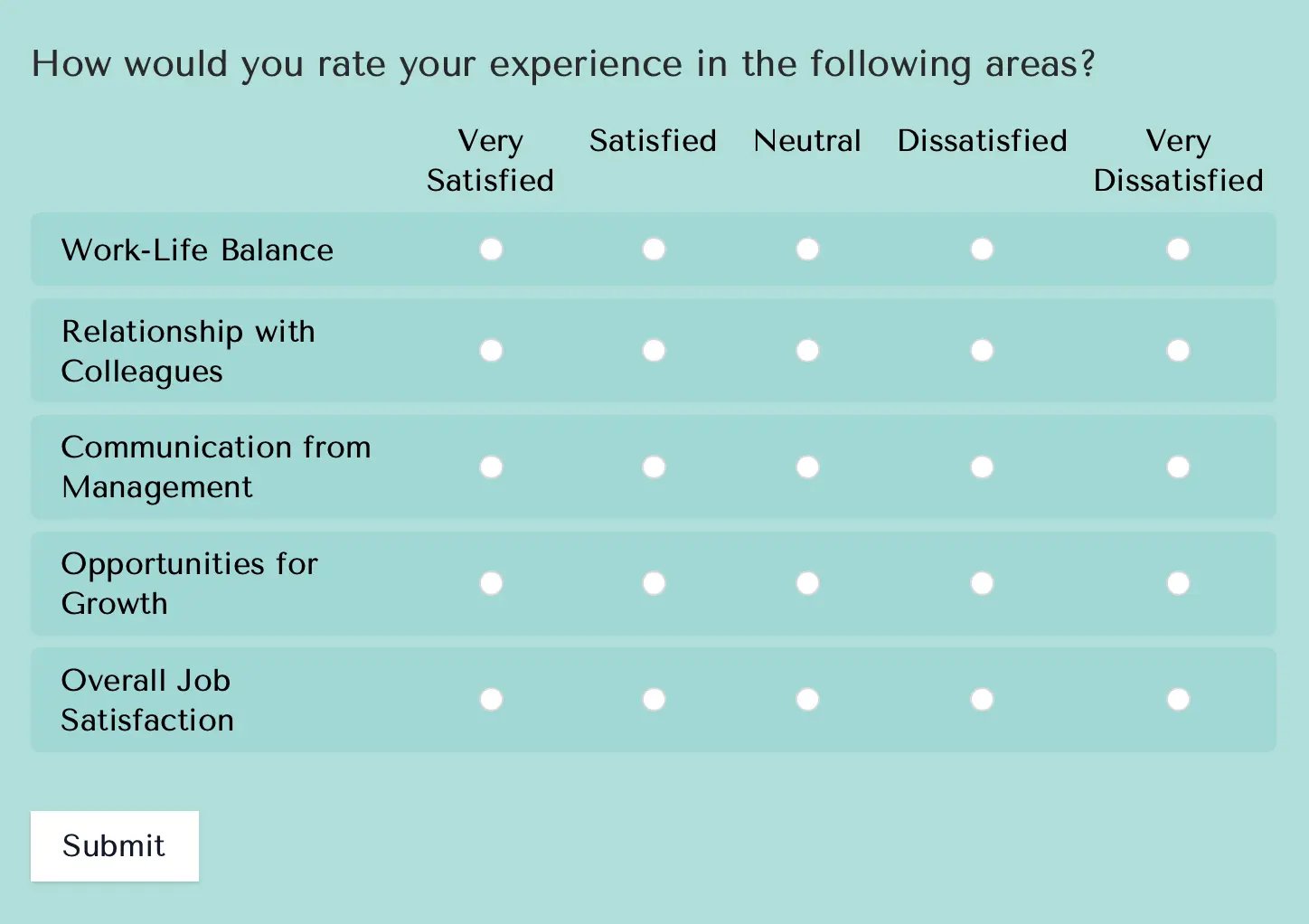
With a **table**, you can add different types of question fields, such as text, numbers, or dropdowns. In contrast, a [**choice matrix**](/matrix) is limited to using only radio buttons for tasks like rating, comparing, or selecting options within a grid.
Connecting the table field to an [integration]() is currently not supported. However, responses can be viewed in a modal on the Results page.
## Table vs choice matrix
With a **table**, you can add different types of question fields, such as text, numbers, or dropdowns. In contrast, a [**choice matrix**](/matrix) is limited to using only radio buttons for tasks like rating, comparing, or selecting options within a grid.
 ## Relevant articles
Collect a grid or table of selections from respondents.
Display questions side by side, rather than stacked vertically.
## Relevant articles
Collect a grid or table of selections from respondents.
Display questions side by side, rather than stacked vertically.